Gidora Desktop · Surface Alpha
Gidora OS Live
Boot Gidora Desktop from a USB drive or the ISO in a virtual machine. After trying it, you can start the installer from the same session.
From ISO to installation
- Download the Desktop ISO and verify its SHA-256. Write the image to a USB drive or attach it to a virtual machine.
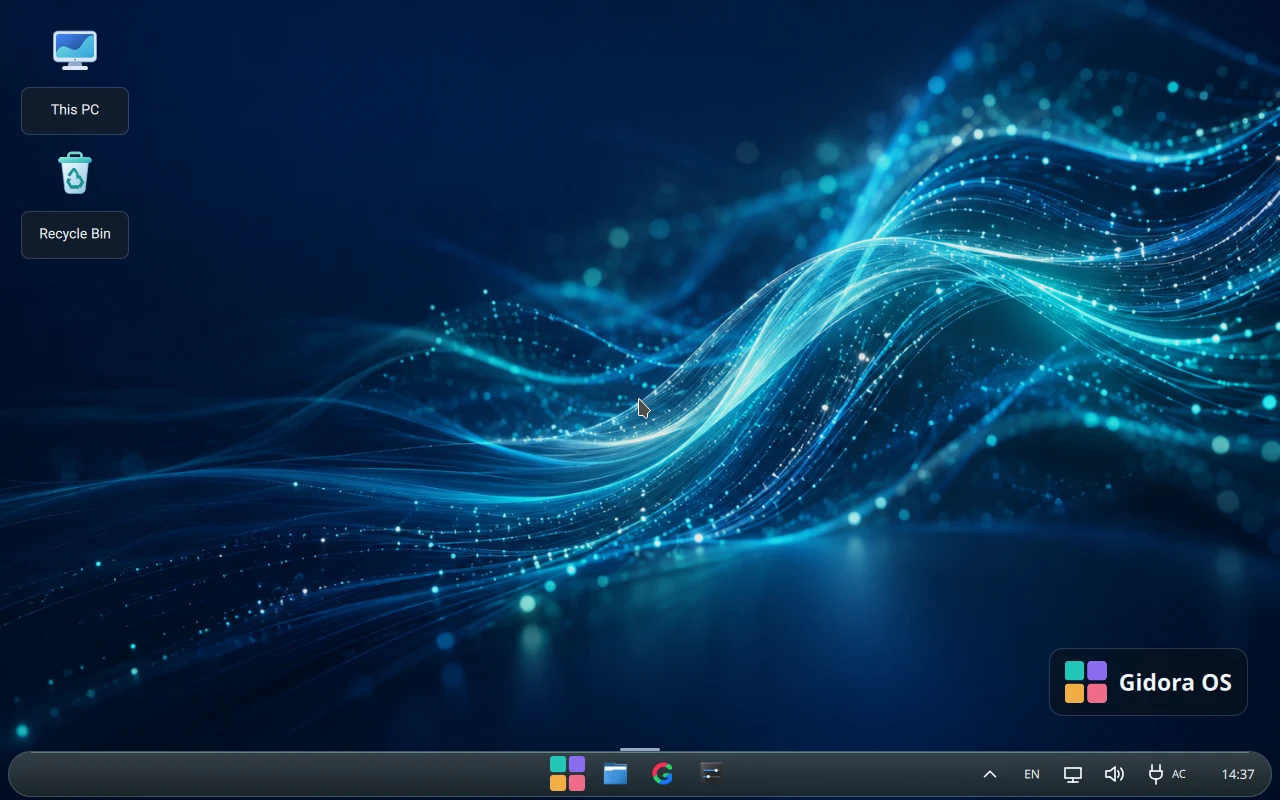
- Boot from the USB drive or ISO. Gidora starts in a live session. Test the display, network, sound and input devices before installing.
- When ready, open Install Gidora OS from the launcher. Review the target disk and partition changes before confirming. You can also shut down directly from the live session.