Before you start
Back up your files. If Windows uses BitLocker, keep the recovery key somewhere separate. This build needs an x86-64 PC and a USB drive larger than the ISO; 16 GB is a practical choice. For a first install, use a VM with a disposable disk.
Download and verify
Save the ISO and its SHA-256 file from Downloads in the same directory. Run this command there. Expect OK. If it reports FAILED, download the file again.
sha256sum -c Gidora-OS-0.1.0-surface-alpha-20261111.1-amd64.iso.sha256Try the live session
In a disk image writer, select the ISO and double-check the USB model and capacity. Writing the image erases the USB. Select the USB in the computer's boot menu. With Secure Boot enabled, start with the Ubuntu entry. Check Wi-Fi, sound, keyboard, storage, display, and any touch or pen you depend on.
Install with Calamares
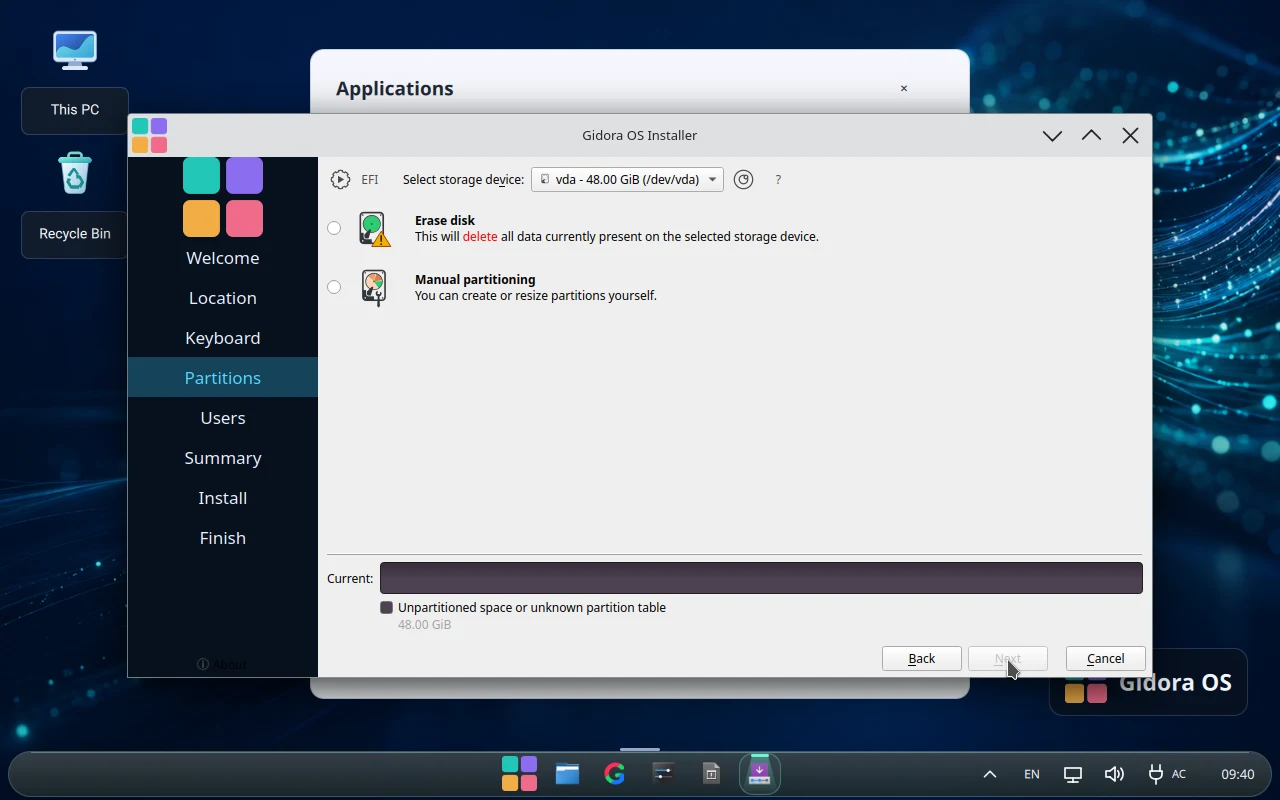
Open Install Gidora OS in the live session. Choose the language, time zone, and keyboard layout. In Partitions, Erase disk removes all partitions on the selected disk. Stop if you need to keep anything or are unsure which disk is selected. For practice, select only the empty virtual disk.
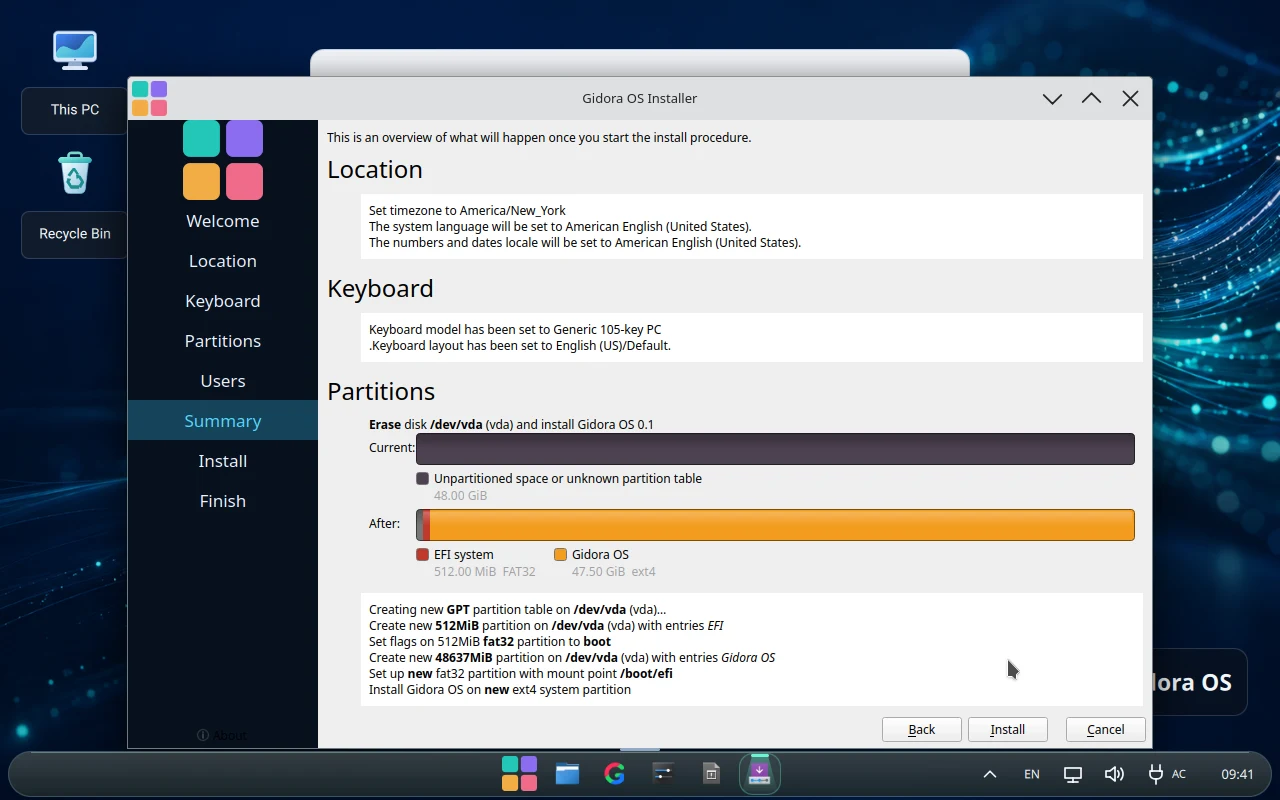
Create a user account and password. Review the destination, partition plan, and proposed changes in Summary. Confirm and wait for completion. Reboot and remove the USB once the live session shuts down.
First sign-in
Sign in with your new account. Open Files and Gidarium and verify networking. If the USB starts again, check the boot order. If the installed disk fails to start, return to Live and back up your files before changing partitions.